


Ovaj članak postoji na njemačkom, engleskom i španjolskom. Čitate englesku verziju.
The Webex App call list shows who called when – as a number. Who is behind it, whether there is an open ticket and what was discussed last time is in your CRM. With the November update, the Caller ID Webex tile brings both together: a call list that knows your CRM.
What the Webex call list can do – and where it stops
Webex shows up to 200 calls from the last 30 days, with the filters “All” and “Missed”, and calls back on request. That is it: a name only appears if the number is stored in Webex itself. There are no notes. And if someone calls three times, they appear three times.
New: tabs for missed, incoming and outgoing calls
The call list in the tile now has four tabs: all, missed, incoming, outgoing. Next to “missed” you see how many callbacks are still open. Above it, you see how many callers were identified today – and whether that is more than yesterday. Missed calls are red; calling back takes one click.
One row per person and day
If someone calls three times in one morning, they appear once in the list – with the count next to their name. One click on the count expands the individual calls. The list stays short, and nobody overlooks the customer in a hurry.
Note, ticket or lead – straight from the list
Every row has two buttons: call back and “…”. Behind “…” are the actions for this contact – open in the CRM, and note and CRM actions. That also works hours later: whoever goes through the list in the evening can add what there was no time for during the call.
The note and CRM actions show what your CRM allows: the caller’s open cases and the types you can create – such as ticket, lead or opportunity. Your note is included, and the case is attached to the right contact.
Open cases as soon as the phone rings
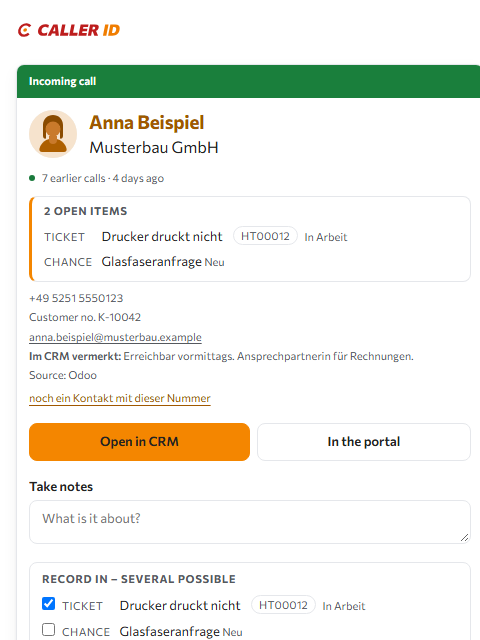
The same cases appear in the card that opens when the phone rings. Before you pick up, you know that this customer has a ticket in progress – and do not have to ask first.
WhatsApp in the same window
WhatsApp messages to your landline number arrive in the same tile, with name and company from the CRM. Whoever takes on a conversation is shown; it can be handed over to colleagues, labelled and archived once it is done. If the customer writes again, it comes back by itself.
Webex call list and Caller ID tile compared
| Webex App call list | Caller ID Webex tile | |
|---|---|---|
| Name on a call | only from Webex | from your CRM or ERP |
| Filters | All, Missed | All, Missed, Incoming, Outgoing |
| Repeated calls | one row per call | one row per person and day |
| Note, ticket, lead | – | straight from the list |
| Open cases | – | when it rings and in the list |
| – | in the same tile |
Already in your tile
There is nothing to install: the tile picks up the new version the next time you open it. Sign-in, settings and integrations stay as they are. Ticket, lead and opportunity appear wherever your company has allowed writing to the CRM.
Not a customer yet? Look at the tile without an account in the demo – or write to us at vertrieb@haus-it.de. Setup and all connected systems: caller-id.app/en/webex.
Česta pitanja
What does the Webex App call list show?
Up to 200 calls from the last 30 days, either all of them or only the missed ones. You can call back straight from the list. It does not show names or cases from your CRM or ERP, and you cannot add a note to a call there.
What is new in the Caller ID Webex tile?
Tabs for all, missed, incoming and outgoing calls, one row per person and day, a note, ticket, lead or opportunity straight from the call list, open cases as soon as the phone rings, and WhatsApp conversations the team can take on, hand over and archive.
Can I create a ticket or a lead from the call list?
Yes, wherever your CRM allows it. The “…” menu of a row opens the note and CRM actions: the caller’s open cases and the types your system offers – with Odoo Helpdesk, for example, ticket, lead and opportunity. Your note is included.
Do I need to install anything for the update?
No. The tile picks up the new version by itself the next time you open it. Sign-in, settings and integrations stay as they are.
Does this work for WhatsApp too?
Yes. WhatsApp messages to your landline number arrive in the same tile, with name and company from the CRM. The team can take on conversations, hand them over to colleagues, label them and archive them.